
Do not use CHKDSK/"repair filesystem" if the disk is damaged
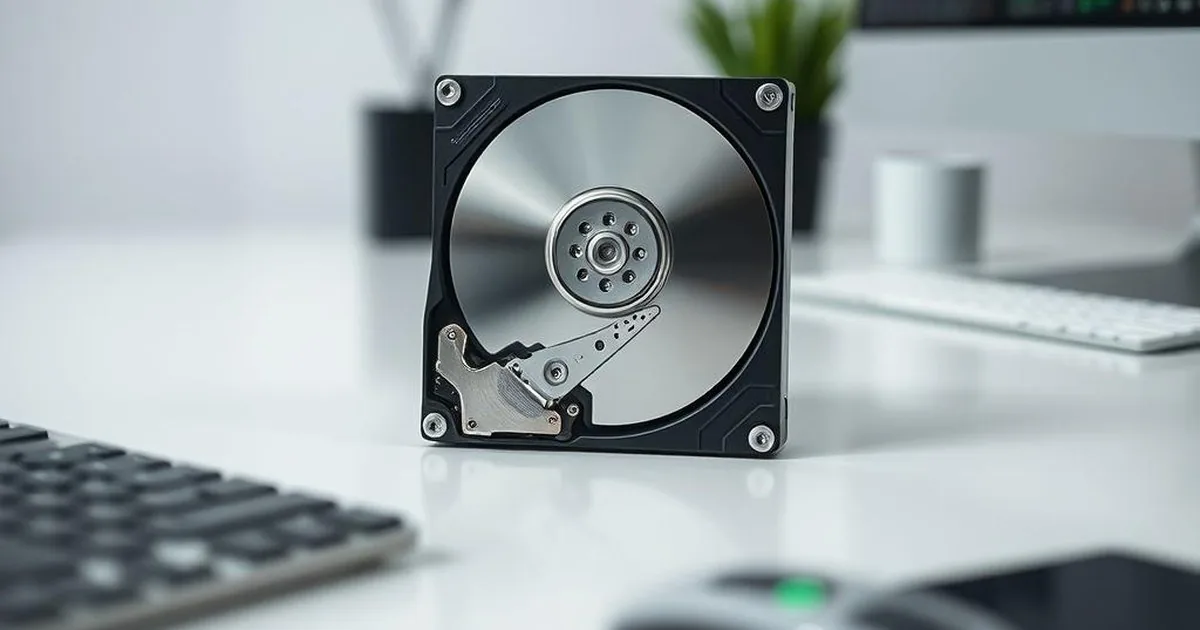
CHKDSK can be helpful with small bugs of the file system on a stable disk. However, if the storage device disappears from the system, taps, slows down, reports the CRC or requests formatting, the automatic repair procedure can change the data structure before the data is released. You will secure them.
Many users reach for CHKDSK because the problem appears as a file-system issue. The danger is that the file system may only be the symptom. The root cause can be bad sectors, weak heads, firmware hangs or unstable flash memory.
When CHKDSK is risky
Do not run CHKDSK on the original drive if it clicks, freezes the computer, drops from the system, reports I/O errors, shows bad sectors, suddenly becomes RAW or mounts only sometimes.
CHKDSK is not a read-only viewer. It can move records, truncate damaged entries, create HDD path with work on a work copy.
Stable media versus unstable media
On stable media, the responsible order is backup first, then repair on a copy or on a device you can afford to lose. On unstable media, the order changes: stop writes, image the device sector by sector where possible, and analyse the copy.
With an unstable storage device, the priority is not to repair the partition, but to limit subsequent readings and maintain the status of the ruler. Therefore, in the laboratory path they first went to the image or working copy, and then analysed the file system.
RAW, formatting and automatic repairs
A RAW volume, format prompt or unknown/uninitialised disk message does not mean the files are gone. It means the system cannot safely interpret the current structures.
What to do instead of running CHKDSK again
CHKDSK is not a tool for safe extraction of contents of files. Its task is to bring the file system to a more complex state, even if it means moving records, cutting off corrupt entries or changing names and paths. For the administrator with a copy of the backup it is sometimes acceptable. For the only copy of the data can be a step that cannot then be played one to one.
Choose diagnosis instead of another repair attempt when the data is valuable, the drive behaves inconsistently, there is no verified backup, or an automatic repair has already changed the state of the disk.
How the safer turn looks
First you limit the recording and check the stability of the storage device. Only then can you think about analyzing the structure of files. In practice, this means: don't fix the original, don't confirm formatting, don't perform long surface tests and don't work directly on the only copy. If an analysis of the file system is needed, it is safer to make it on a work copy than on a disk.
FAQ: CHKDSK and repair the file system
Does CHKDSK always destroy data?
No. On a smooth storage device and with the current backup can be a normal administrative tool. The risk arises when the disk is unstable or contains one I copy the data because CHKDSK can change the structure of the files against their protection.
What do you do if Windows itself proposes to repair?
Do not confirm it automatically. Save the message, check the type of storage device and see if the data is more important than the quick return partition to the view in the system. With the relevant data, it is better to secure the status of the third.
Is the case lost when CHKDSK is launched?
It doesn't have to be. However, it is necessary to describe honestly when the tool was started, how long it worked and what changed. This information helps you choose a further analysis and do not repeat the same risky operations.
What to do instead of another CHKDSK launch
- Stop automatic repairs and avoid repeated mounting attempts.
- Write down the messages, capacity shown by the system and physical symptoms.
- See if you have an updated, playable... I'm digging a spare...
- Do not work directly on the original if the data is important.
- If CHKDSK, TestDisk or recovery software has already been run, mention it in the case description.
When to report a case for diagnosis
If the problem concerns the only copy of documents, photos, company data or database, the safer step is short report the case to the laboratory with a description of symptoms and earlier attempts. You can check too, how the quote of the work with the knife looksBefore you take any further action.
What to do after starting CHKDSK
Don't run it again. Save whether the process is successful, stop at errors, create FOUND.000 files or change the folder structure. This is important information, because CHKDSK does not recover data; it will arrange the file system, sometimes at the expense of the earlier directory system.
If the CHKDSK part of the data is gone, do not copy everything on the same shoal and do not attempt any more automatic repairs. First you need to determine whether the problem is logical or due to unstable reading. With the damaged HDD or SSD work on the original storage device can decrease loss.
How does a safer analysis look after CHKDSK?
In the laboratory, it begins with the assessment of the storage device and making copies, if the condition allows. It is only on the copy that you can analyze the file system, folders after repair, fragments of files, and earlier traces of structures. This is slower than clicking "repair"but shows which elements of CHKDSK have already changed.
When reporting, please specify the exact system message, CHKDSK operation time, storage device type and list of the most important files. If FOUND.000 folders appear, don't delete them; they can... be relevant for reconstruction, even if they do not look like standard user documents.
When a system message sounds innocent, but it's risky
Windows can propose to repair the disk with a language that sounds safe: "really wrong", "repair disk", "scan and repair". With a working storage device, this can be the usual procedure. With a disk with reading errors, tapping, loss of detection or RAW state, it may be an operation that changes the data structure to the original storage device.
If you do not know if the storage device is stable, do not approve the automatic procedure just because the system proposes it. First check if you have a backup copy, stop the records and describe the symptom. It is a calmer way than to react under pressure. message on screen, but safer for data.