
SSD and HDD comparison for real data safety
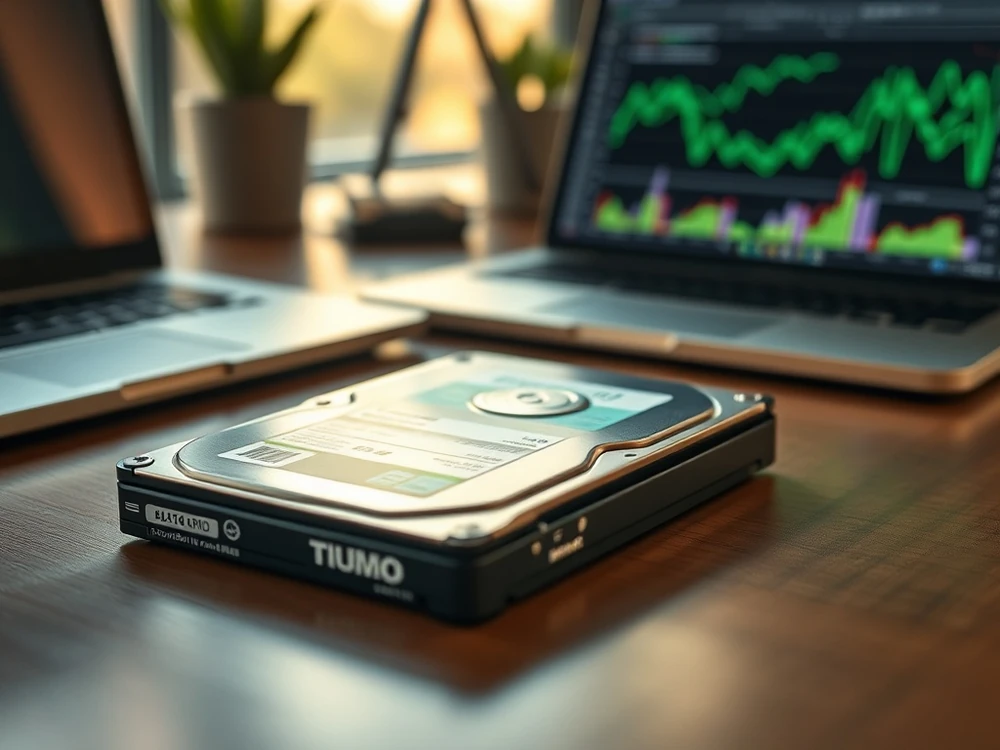
Is SSD safer than HDD? The short answer: it depends on the risk you are trying to avoid
A laptop used between meetings in Warsaw, a family photo archive on an external drive and a company workstation in an accounting office all need different storage decisions. The question is not whether SSD or HDD is "better". The useful question is: which failure mode can you survive? Both drive types fail differently and carry different risks.
SSD It is usually better to endure daily use, transport and shakes, because there are no moving plates and heads. HDD is in turn more "grateful"in diagnostics and in many scenarios allows for more predictable data recovery from hard drive. From the user's point of view, this means one thing: the safer one will not be the one that "never breaks down"but the one that you use as intended and which failure does not remain without backup.
For everyday mobility an SSD is usually safer. For diagnosis after failure, an HDD can sometimes be easier to read in a controlled way. Neither replaces a backup.
Where an SSD really is the safer choice
Use an SSD for operating systems, mobile laptops, field work and active projects. It starts faster, tolerates shocks better and is less likely to suffer a head crash after a bump in a tram, taxi or office bag.
- No moving parts: lower risk from vibration and transport.
- Faster operation of the system – less temptation to restart the computer multiple times during routine use.
- Lower sensitivity to transport — valid for company laptops, photographic and installation equipment.
- Better performance ——
If your SSD is no longer visible, compare the symptom with daily useSSD very often wins. This is especially true for laptops, mobile workstations and computers that work on the move.
Where SSD failure can be more brutal
Flash storage can fail with little drama. There may be no clicking, no two-week slowdown and no obvious warning. The drive may suddenly show as not detected in BIOS/UEFI, appear as 0 GB, switch to read-only mode or stop responding after a firmware/controller problem.
SSD recovery also depends on the controller, NAND condition, translation tables, firmware and background processes such as TRIM and garbage collection. If files were deleted on a TRIM-enabled SSD, the recovery window may close much faster than users expect. TRIM and garbage collection. That's why. data recovery from SSD/NVMe does not look the same as in HDD. Sometimes it is physically present, but logically the state of the data changes faster than the user expected.
- SSD can disappear suddenly from BIOS/UEFI.
- After deleting the file, recovery can be severely hampered by TRIM.
- Some NVMe failures appear suddenly after overheating, power events or firmware faults.
- Repeating the startup attempt can make the situation worse and close the window for safe operations.
If your SSD is no longer visible, compare the symptom with Fault recovery, the answer often leans towards the benefit of the HDD —, especially when the problem has been noticed and there has not been a number of home 'repairs'.
What HDDs usually do before they fail
A hard drive often gives physical or logical warnings: clicking, knocking, slow folder opening, copy errors, SMART pending sectors, RAW partitions or the system hanging while reading one folder. Those symptoms are not harmless, but they are useful if you stop early.
In practice, on the HDD we see three typical groups of problems:
- Mechanical risk: heads, platters, spindle and fall damage.
- Logic failures – data deletion, RAW, file system failure,
- surface degradation damaged MFT, partition table, RAW volume or accidental formatting.
This is why it is so important to stop testing, scanning and repair of the type with classic disks CHKDSK on damaged storage device. HDD itself often gives an alarm signal, but further user action can be... Use this security window.
System drive, archive drive, backup drive: different jobs
For the operating system, programming and daily work SSD is now a natural choice. Comfort, speed and resistance mobile give you the... Clearly better working conditions. However, this does not mean that SSD should be the only place to store important data.
For large archives, work copies, less critical resources or offline backup HDD still makes sense Especially when we talk about more capacity and lower cost for 1 TB. The most reasonable model usually looks like this:
- Use SSD for speed and mobile work.
- Use HDD/NAS for capacity and secondary copies.
- additional copy outside the computer: second storage device, cloud or rotary backup.
Other words: do not choose between SSD and HDD as between "safe"and "dangerous". Treat them as elements of different differences in a reasonable data storage system.
What hurts more after failure?
It depends on what kind of loss you count.
- HDD failure often hurts operationally: the computer slows down, files copy badly, the system freezes and the user sees the problem building.
- SSD failure often hurts decisively: everything worked yesterday, today the drive is missing or the laptop will not boot, and there is little time for calm decisions.
Whether you work on an SSD, HDD or a small NAS, data safety comes from a procedure, not from the brand or technology printed on the case. DiskSSD emergency It can be more severe. For users of laptops after a fall or disks carried between locations, it is more risky in turn HDD working on the move.
How to make data safer regardless of drive type
Depending on whether you work on the SSD, the HDD or the NAS array, data security is built by a procedure rather than by a storage device model.
- Keep a regular backup – best in the 3-2-1 model.
- Do not keep the only copy on a laptop.
- Watch early symptoms:disappearing drives, copy errors, sudden speed drops, unusual sounds, RAW volumes or format prompts.
- Don't delay your reaction...when the first instability appears instead of waiting until the drive stops entirely.
- Do not test repair tools blindly on a device that contains the only copy of important files.
If you want to compare the costs and scenarios of the accident, see this guide: how much data recovery costs.
What to do when either drive starts acting wrong
If the storage device shows signs of failure, it is most important to stop a series of accidental attempts. Don't format, don't initiate, don't run automatic "repairs", don't write data recovery programs on the same disk and don't assume that "I'm still working for a while".
On the HDD, it is particularly dangerous to continue reading despite the clicks, clicks and suspensions. With the SSD, multiple reboots, updates of the firmware —— When the problem is real, it is true. The focus is to make a quick diagnosis and to decide whether the priority is protecting the storage device or the immediate recovery of the data.
Do you need any help? Select the most relevant path
Describe the storage device model and the symptom and we will prepare a safe... operation procedure.
If you want to go deeper in the topic of the SSD and NVMe, start with these materials: