
HDD, SSD or cloud: how to choose storage for backups
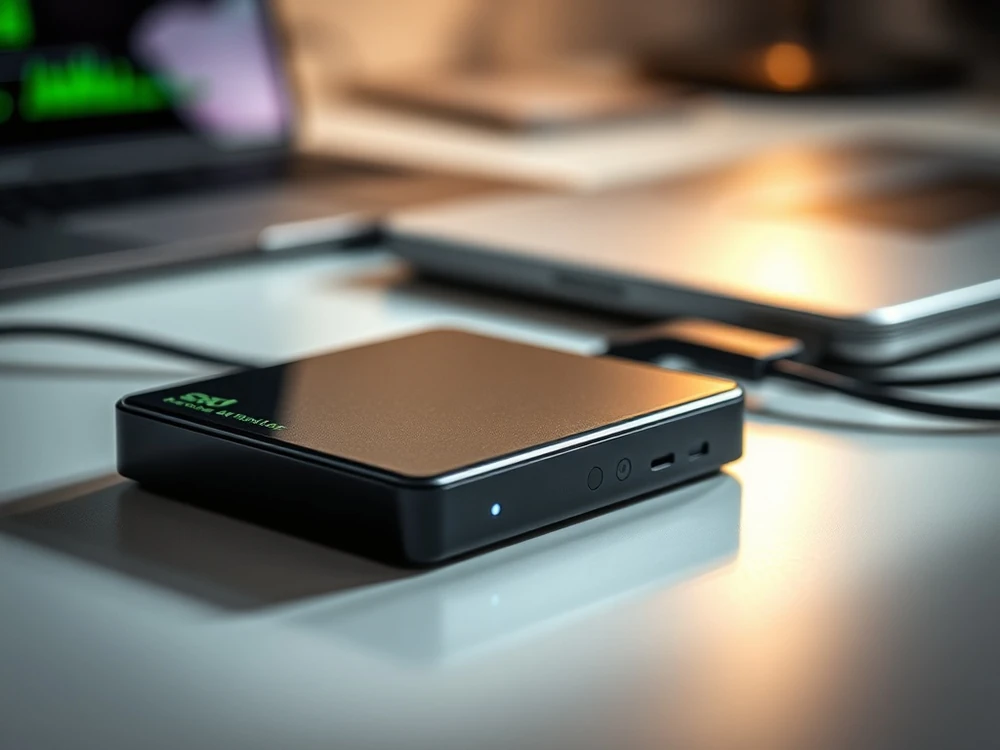
Which backup medium makes the most sense?
There is no single best backup drive for every Warsaw freelancer, family archive or small company. A good choice depends on how much data you protect, how often it changes and how quickly you must restore it after a failure. Family photos, a photographer's working archive, accounting records and company documentation all have different needs. how much data you want to protect, how often you change it and how quickly you need to retrieve it after failure. Another model will work for family photos, another for photographer work, and another for company documentation or book bases.
The key point is that backup storage must be regular, simple to use and resistant to the same incident that could damage the original. Capacity alone does not solve anything if the copy is too old or if every copy sits in the same bag, room or laptop.
HDD, SSD or cloud - quick comparison
- HDD: best capacity per price, good for archives, weaker for transport.
- External Disk SSD fast and portable, but still vulnerable to controller/firmware failure.
- Cloud: — good as an additional security layer ‘outside the house or office, but depends on the internet, transfer limits and subscription model.
In practice the best results usually come from a combined model: a local backup plus a second copy away from the computer, either on another drive or in the cloud. local backup + second off-computer copy, e.g. on the second disk or in the cloud.
When HDD makes sense
HDD still makes sense when you store large photo libraries, video archives, project folders or full-computer backups. Large capacity at a reasonable price makes it easier to protect the whole data set, not only selected folders.
Minus is less resistant to transport and accidental impact. Such a storage device is better treated as a easily stored archive than a disk, which lies in a laptop bag every day. If your external disk is already unstable, see this guide external drive disconnects during copying.
When SSD makes sense
Use SSD when speed, field work and frequent transfers matter. It is useful for photographers, consultants and mobile teams. But one SSD should not be the only copy of critical data.
Remember that an SSD is not magically indestructible. Controller failure, firmware problems or sudden power loss can still cut off access. If the backup is critical, one SSD remains only one layer, not a full strategy.
When cloud makes sense
The cloud gives the most important advantage, which will not be provided by a single disk flying next to the computer: Separation of copies from the workplace. It's important for theft, fire, flooding, flooding or ransomware. For documents, photos and smaller archives it is often a very convenient layer of security.
Remember: sync is not versioned backup unless configured that way. A deletion or ransomware event can sync just like a normal edit.
The safest model: the 3-2-1 rule
For most users and small companies, the simple 3-2-1 rule still works well.
- 3 copies of the data: the original plus at least two backups.
- 2 different storage types: for example computer plus HDD/SSD plus cloud.
- 1 copy outside the main location: so one incident cannot destroy everything at once.
To put this into practice, combine this guide with automatic backup setup for Windows and macOS and about the article backup planning for photos, documents and project work.
What to look for when buying a backup drive
- Capacity with spare The copy grows faster than it seems.
- Stable and use Stability and usage style: a home archive has different needs than daily mobile work.
- Ease of automation — the simpler the process, the more likely the backup will actually run.
- Second layer of safety A second safety layer, because one new drive is still not a complete backup strategy.
What to do if the backup was on the only device and stopped working
If the only copy was on an external HDD, SSD or another device that is no longer detected, do not format it and do not run random repair tools. First determine whether the fault is electronics, file system, cable, USB enclosure or the storage device itself.
In that situation, external USB drive diagnosis may be the right path, or, if the problem involves flash storage, SSD data recovery. It is safer to stop at diagnosis than to worsen the condition of the only current copy.
When a backup device starts failing, do not postpone the decision
If a backup drive starts disconnecting, slowing down or disappearing, do not assume it will survive one more week. When it holds the only current copy, stop further writes, check the scale of the problem and decide whether this is a migration task or already external USB drive data recovery.
If you want to assess risk and cost calmly, send the symptom description through describe the symptoms of a storage device with a copy of... or first check how data recovery pricing works. With a backup device, the key is to distinguish ordinary replacement from a case where the only copy must be recovered first.