
Damaged HDD before safe data recovery diagnosis
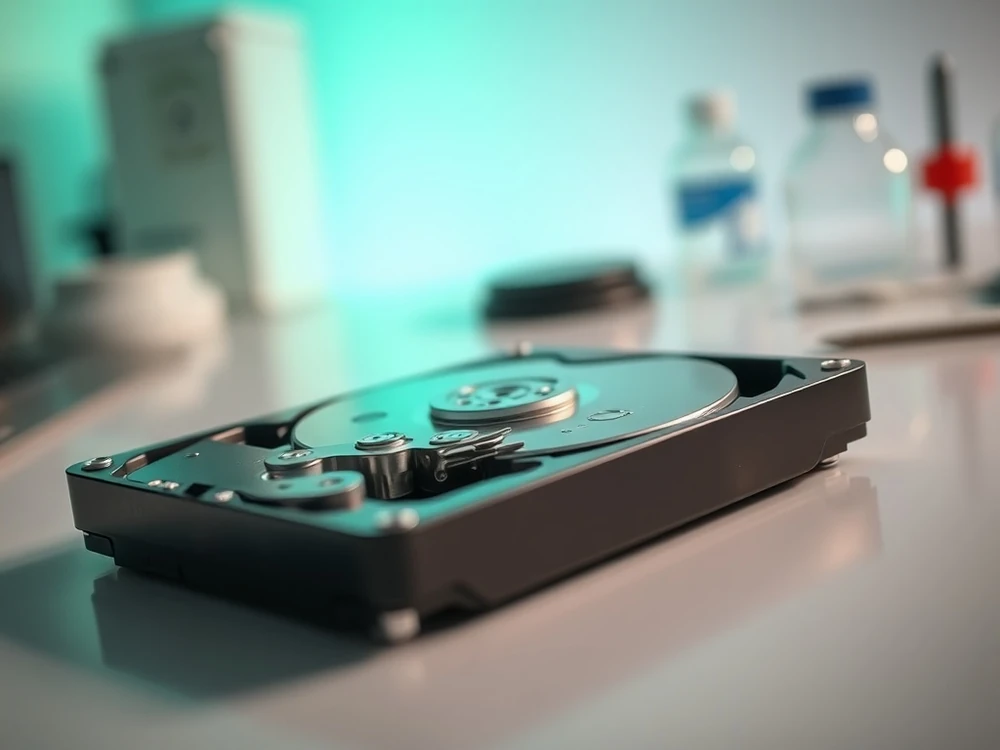
The damaged HDD does not always mean the same scenario. Sometimes the problem concerns the file system, sometimes the reading errors, and sometimes the mechanics. The most important thing is not to turn the first diagnosis into a series of random trials.
This article is not an instruction to act on the original without assessing the condition of the storage device. This is a guide to a safe approach to the crash of the HDD: what to check when to stop testing and when to move to HDD data recovery.
First identify the type of symptom
- Logical: deleted files, damaged folder tree, RAW or format prompt on a stable drive.
- Problem reading: CRC errors, slow copying, freezes on specific folders.
- Mechanical: clicking, knocking, failed spin-up or grinding.
- USB/enclosure: disconnects, weak power or bridge-board symptoms.
If there is a problem with the external disk, check it out. HDD data recoveryinstead of making the original disk work harder. will be CRC when copying files.
What not to do with a damaged HDD
- Do not power-cycle the disk repeatedly if it makes unusual sounds.
- Do not install recovery software on the same drive.
- Do not format or initialise the device if it contains important data.
- Do not run CHKDSK on a disk that may have physical damage.
- Do not open the HDD at home or replace electronics without diagnosis.
When software-based work can make sense
Program work makes sense only when the disk is stable, does not seem unusual sounds, does not disappear from the system and you are sure that you save the results to another storage device. In such a scenario it is still worth to start with a work copy or an image, not with repair of the original.
If the problem involves an external drive, also check RAW — Not Format and do not use CHKDSK on damaged disk.
When to stop home attempts
If the drive clicks, disconnects or slows badly, every scan is extra work for a device that may already be struggling to read. A long home scan can turn a recoverable weak surface into a worse imaging job.
If you can hear the mechanical sounds, see drive clicking on startup and list of symptoms of mechanical failure of the HDD.
How the lab will arrange such a case
First it is assessed whether the disk can work stably, or whether you need to limit any subsequent launch. It is only then that the method of reading is chosen: I copy the workbook, sectoral reading with the omission of smaller areas, analysis of the file system or mechanical aspect. This really changes the level of risk and the sequence of procedures. The same symptom in the Explorer can mean a basic logical case or a disk that will stop responding in a moment.
Therefore, there is no one good instruction for working on the damaged HDD without diagnostics. If the sleeper is stable and you have a backup, you can act more calmly. If this is the only data score and the disk click, connects or shows reading errors, the safest step is to stop further attempts.
How to set data priority
With the damaged HDD, it is worth pointing out immediately what is really important: book base, photos from one session, company documents, project directory or the entire user profile. Priority allows you to select the order of reading and not to waste time on directories that you can play with others.
FAQ: Recovery of data from damaged HDD
Can only a few of the most important folders be recovered first?
Often the priority of data makes sense, especially when the storage device is unstable. This does not mean a guarantee to read specific catalogues, but helps set the order of work and limit the time spent in less important areas.
Is SMART enough to evaluate disk status?
No. SMART can be helpful, but it does not describe the entire risk. The disc may have severe mechanical symptoms despite ambiguous parameters, and the reading of the SMART itself does not replace the diagnosis of the storage device.
Can you first make a copy of the software tool?
Only if the disk is stable and the copy does not cut It's beyond measure. When tapping, fading detection, CRC errors and system suspensions, it is better not to do long copying without control of the storage device.
What to prepare before diagnosis...
Record the drive model, capacity, file system, symptoms, previous recovery attempts and the most important directories. Add whether the storage device was used in a laptop, desktop computer, USB enclosure or RAID array.
If you already know that storage device should not be run further, go to description of the symptoms of the storage device for analysis. You can check too, What the evaluation of data recovery looks likeBefore you transfer the disk to diagnosis.