
"I/About Device Error"message in WD Passport drives – diagnosis and repair of | Dysk i Spółka
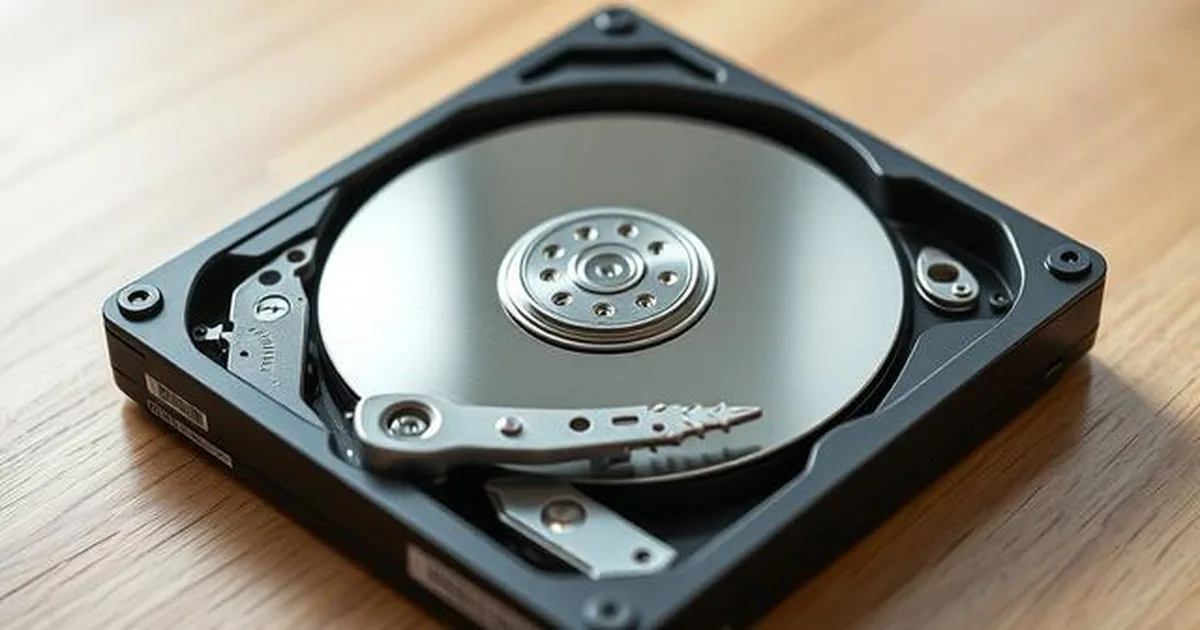
An input/output error means the operating system sent a read or write request and did not receive a correct response in time. The request may be as simple as listing a folder, reading a thumbnail or copying one file.
On WD My Passport drives this message often appears when the disk hits weak surface areas, firmware cannot translate sectors correctly, or USB electronics become unstable under load.
What does I/O Device Error mean?
Input/Output error means that Windows sent a query to a disk, e.g. for a list of files or reading a folder. The disk failed to respond at a specified time or returned a critical error.
In the case of popular series portable drives WD My Passport, the causes are usually three:
- Puzzle problems: Inconsistency of the file system or partition table, requiring evaluation without writing on the original.
- Electronic problems: Unstable USB port power supply or drive electronics (PCB) failure.
- Physical problems (most common): Presence damaged sectors in key areas of the disc or degradation of the reading heads. When the head hits the damaged area, it suspends and the system throws an I/O error after a while.
Important: If WD Passport clicks, beeps, cyclic shura or hangs up while reading, disconnect it from the computer. Further attempts to copy may burden an unstable storage device area and reduce the range of possible recovery.
Why WD My Passport is a special case
Most external drives of other brands are usually a standard hard disk (SATA) inserted into a plastic casing with a simple USB switch. When the USB socket is damaged, the way to proceed depends on the vehicle design. With important data, do not strip the enclosure or change the interface without a diagnosis.
With WD Passport is different. Western Digital manufacturer uses them integrated USB connector on main disc (PCB). This means that there is no standard SATA connector. For the user, this means limited diagnostics without access to the service interface and appropriate position. The laboratory first determines whether it is safe to communicate with the disk in service mode.
What you can check without loading the disk
Before further reading, check only the reversible components of the connection:
1. Change the environment: cable and USB port
Laboratory work is also safer when the disk contains business archives, photos, accounting files, project data or the only copy of a backup. In those cases, the goal is not to make Windows see the drive again at any cost, but to read the unstable media in a controlled way.
- Connect the disk with another proven USB cable (preferably original, short).
- Connect the drive directly to the USB port at the back of the PC (directly to the motherboard). Front housing ports or USB hubs often give too little power for hard drives.
2. Check S.M.A.R.T. only without a full scan
SMART reading can only be an auxiliary observation, e.g. in CrystalDiskInfo. Do not run full scans or surface tests. If the media taps, hangs up, disappears from the system, or suspends the computer while copying, disconnect the disk and describe the symptoms before diagnosis.
- If the condition is "Good"(Blue): The problem can lie in the file system (logic).
- If the condition is "Note"(Yellow) or "Bad"(Red): You are dealing with physical degradation of the storage device. Note the parameters 05 (Reallocated Sectors Count) or C5 (Current Pending Sector Count).
WHAT ARE YOU NOT GOING TO DO?
Formatting may overwrite file-system structures and does not repair bad sectors, weak heads, firmware problems or USB bridge instability. If data matters, do not format.
When a laboratory is needed
If the change of cable did not help, the disc makes strange sounds or SMART parameters indicate warning or critical values, the problem may be the storage device itself. In the case of WD Passport, there is also a problem called "Slow Response"(a problem with system software modules), which makes the disk extremely slow or does not give access to files at all.
In the laboratory we choose a method for diagnostic results, including:
- Try one known-good USB cable and a direct USB port, without a hub.
- Modify the disk system software to block the processes that suspend it.
- Making a binary copy (sector by sector) on professional devices that allow to manage I/O errors outside the standard connection by the operating system.
If your data is valuable, do not risk uncontrollable attempts. Report the storage device to the standard diagnosis 0 PLN.
FAQ - common questions
Can I fix an I/O error by formatting a disk?
Lab work may involve controlled imaging, firmware-level access or work with the original USB electronics. The goal is to read unstable sectors and recover data to another device.
How much does it cost to diagnose an I/O device error?
Some WD Passport models use encryption tied to the original USB bridge. That is why removing the disk from the enclosure or swapping boards can make recovery harder instead of easier.
How to prepare for diagnosis
Stop after the first repeated I/O error if the files are important. A short diagnosis request is better than another long copy attempt on the original drive.
Before you take further steps, see also:
When WD Passport needs lab tools
If the I/O error returns on different computers, there are power outages, the device disappears from the system, or unusual sounds are heard, the risk of internal damage increases rapidly. Then it is safer to stop repeated tests and proceed to controlled diagnostics.
For comparison, it is worth checking:
If the data is valid, describe the I/O error symptoms before diagnosis before you run any more tests.
What if the data matters more than more tests?
If on this WD Passport you have the only copy of photos, documents or company data, it is not worth to do further tests without a diagnostic plan. In practice, it is safer to collect symptoms, describe when the I/O Device Error message appears and immediately pass the matter to the laboratory through the form laboratory contact. This makes it easier to assess whether the problem concerns electronics, USB bridge or media itself.
Before the decision it is also worth checking the indicative evaluation of work and go to service diagnosis of external USB drives, because that is where WD Passport cases are most often handled.
If you want to compare this symptom to SSD failures, see: